Windows 7 Virtual PC Management

Last time, I wrote a walkthrough of installing Virtual PC and XP Mode under the Windows 7 RC.  If all you want to do is get XPM up and running, and maybe play with one or two basic VMs, you should be away to the races.  But if you’re a more advanced user, you’re going to have a hell of a time finding certain basic settings and functionality.  I’m going to show you where you can find most of these settings.

First, it’s important to understand the general architecture of the new Virtual PC.  Before, it was pretty simple.  You started Virtual PC, which gave you a small window with a list of registered Virtual PCs.  It included controls to create, edit, and manage virtual PCs, as well as access to general program options and virtual disk tools.  Each running VM had its own window.  Simple.

Under Windows 7, things have been completely revamped.  I’m guessing this was done to make virtualization feel like part of the OS rather than a stand-alone program.  Unfortunately, it has had the effect of taking a nice, simple, centralized virtualization solution and scattering it all over the place.  Now, each VM runs in its own process, and there are additional stand-alone applications for performing various management tasks.  And to tie everything together, there’s shell integration – although this is currently woefully inadequate.  So, to get you started with this new architecture, I’m going to describe how it all fits together, and then I’m going to show you a few commands to help you find some of the features you might be missing.

The ‘core’ of Virtual PC under Windows 7 from a UI perspective is the Virtual Machines folder.  This will be found under your home folder (such as C:\Users\<Username>\Virtual Machines), and you should see a link to it on your Start Menu.  Consider this a replacement for the Virtual PC Console of days gone by.  You’ll see an entry for each known VM, and although it’s a standard Windows Explorer folder, you’ll see details on the machine’s status, memory, disk, and so on:

image

  Right-clicking an entry exposes a ‘Settings’ command which lets you configure the VM:

image

What’s actually happening here?  Well, the Virtual Machines folder is a list of .vmcx files, which are actually just shortcuts to .vmc files.  These .vmc files haven’t changed; they still contain the definition and settings of the VM in question.  By default, Windows 7 places the .vmc files under the hidden AppData folder, but they can be anywhere.  In fact, if you open a .vmc file you have saved elsewhere, Windows will automatically create the .vmcx shortcut under the Virtual Machines folder for you.  Deleting an entry from this window will NOT remove the VM, just like deleting a shortcut to a file won’t delete the target file itself.

VMWindow.exe: So, if the Virtual Machines folder is just a list of shortcuts displayed in Explorer, what happens when you start a VM?  Actually, this is simple.  Under Windows 7, .vmc (and .vmcx) files are associated with a program called VMWindow.exe, just like .txt files are associated with Notepad.exe.  This is the process that the VM actually runs under.  Technically, there’s a bit more wizardry going on here, involving services and the vpc.exe process, but let’s ignore that for now, it’s not really relevent for management purposes.

VPCSettings.exe: What about editing the settings of a VM?  Well, that’s what this standalone application does.  Each time you edit a VM’s settings (by right-clicking it under Virtual Machines and choosing Settings), this application is launched.  Of course, you can still just edit the XML of the .vmc file if you really know what you’re doing.

VPCWizard.exe: Finally, there’s this little application, used for creating new VMs, as well as managing disks of existing VMs.  When you click “Create virtual machine” on the Virtual Machines toolbar, this is what’s launched.  It’s also used when you click Create or Modify under the Hard Disk portion of a VM’s Settings window.

VMCPropertyHandler.dll: Here’s another file you should be aware of.  This isn’t a standalone executable, but it is responsible for some magic, including making Explorer understand details like Machine Status and Memory for .vmcx files.  It also handles the launching of seamless applications, as we’ll soon see.

So, how can you use all this?  Well, here are some tricks:

To do this: Run this command:
Launch an existing VM VMWindow.exe –file <vpcfile>
Open the Virtual Machines folder VMWindow.exe
Edit a VM’s settings VPCSettings.exe <vpcfile>
Start the wizard for creating new VMs VPCWizard.exe
Edit an existing .VHD hard drive image VPCWizard.exe /type evhd /filepath <vhdfile>
Create a new .VHD image VPCWizard.exe /type vhd

There’s one other trick you might want to play with: launching seamless applications.  However, I don’t really recommend you do this any way than through the built-in UI; it’s just too complicated and fragile.  But, to launch a seamless application, you just need to call the LaunchVMSal function of VMCPropertyHandler.dll.  You can do this through rundll32.exe.  For example, here’s the command used to start IE6 in seamless mode on the Windows 7 desktop as shown in my earlier post:

rundll32.exe VMCPropertyHandler.dll,LaunchVMSal "Virtual Windows XP" "||c0a9b641" "Internet Explorer"

If it breaks, don’t say I didn’t warn you.  If anyone knows what the weird hex code is for, please let me know.

So, hopefully this helps you understand how the new Virtual PC works a bit better.  Clearly, Microsoft has a lot of work to do before this product is ready for launch, but I must say, I do like the direction they’re taking.

UPDATE: It looks like the ‘weird hex code’ I mentioned actually corresponds to a key under HKLM\Software\Microsoft\Windows NT\CurrentVersion\Terminal Server\TsAppAllowList.  Virutal Windows XP uses Remove Desktop Services to expose XP applications to Windows 7, which means there’s a fully-documented API (and a WMI provider) if you want more details.  Thank you, anonymous tipster!

Installing Virtual PC and XP Mode in Windows 7 RC

The Windows 7 RC is a great release – and for once, the release candidate moniker is accurate.  It’s stable, compatible, fast, and polished enough that it could be released as the final version.  It could be, but it won’t: Microsoft will let everyone from royalty OEMs to nerds in basements play with it and see how it works, so that one last round of polishing and bug fixes can be applied.

Virtual PC, on the other hand, is a beta.  Again, the moniker is appropriate: it’s a work in progress.  It’s far enough along that you can sort of see how it’s supposed to work, but it’s a long way from done.  I really hope Microsoft realizes this and takes the time to get it right, but they’ll be under enormous pressure to ship this along with Windows 7.  So, I thought I’d share my experiences and drop a few hints on dealing with changes and finding lost functionality.  Today, I’ll talk about the installation and how to get started using it as Microsoft intended.

First, let me be clear: This version of Virtual PC is for Windows 7 RC only.  Don’t try it on XP, or Vista.  Don’t try it on the Windows 7 beta or other leaked builds.  There are enough issues using it with the platform it’s intended; whether you succeed or not, you’ll just be wasting your time.

Second, make sure your system will support this new version.  In particular, your CPU must support virtualization, and not all do – not even all Core 2 Duos.  You’ll need either Intel VT or AMD-V available and turned on.  Also understand that installing this new version will replace Virtual PC 2007, and you may not be able to go back.  Finally, review the new and missing features here – you may choose to skip this beta for now.

What’s changed since Virtual PC 2007:

  • Emulated video is gone.  Video is now supported through an RDP display device.  This brings benefits as well as problems.  Performance isn’t as good, but it’s still beta.  Most users won’t even notice this change, but it does matter.
  • Support for non-Microsoft operating systems probably isn’t as good as VPC2007, although this is a mixed bag.
  • USB support has been added – and very well, too.
  • The management UI is very lacking.  Very lacking.
  • Applications in the VM can be launched seamlessly onto the host’s desktop.
  • For XP and Vista guests, the boot process can be reduced to a simple progress bar rather than a large flickering window.  Boot seems somewhat faster.
  • Drag and drop between the host and the guest has disappeared.
  • No more Host key support.

So, assuming you have Windows 7 RC up and running, the first thing to do is to download and install the Virtual PC package from http://www.microsoft.com/windows/virtual-pc/download.aspx. There are x86 and x64 versions available, and the download is around 5 MB, and the install is quick and easy.

If you don’t care about Virtual Windows XP (also known as Windows XP Mode, or XPM), you’re done.  You can now launch your saved VPCs and get down to work.  But unless you’re really tight on hard drive space, I really recommend you install Virtual Windows XP.  If nothing else, it’s certainly the easiest way of getting an XP VM set up.

You can download XPM from the same URL, but be prepared: it’s about 450 MB.  Why?  Well, you’re actually downloading a full install of Windows XP SP3.  There are two parts to setup: installing the XPM files, and setting up the XPM virtual machine.  The first part is dead simple (if not particularly fast): just run the file you downloaded.  The second part is a bit more complicated, but if you consider that you’re actually performing a full install of Windows XP, you’ll be amazed at how streamlined it actually is.

Accept the license terms:

image

Specify a new logon password (saving credentials here is highly recommended; it will make your life much easier when it comes to launching programs under XPM):

image

Choose whether or not you want Automatic Updates to run (remember, this is a full installation of XP, with all that goes with that):

image

XPM will then perform some magic, which might take a while:

image

When it’s done, you’ll be at your XP desktop:

image

If you’ve used Virtual PC before, you’ll be right at home.  If not, just think of this window as a monitor for a completely separate computer running Windows XP.  You use the same keyboard and mouse, of course, and most hardware resources are shared as well.  The hard drive of this virtual computer is really just a file on the real computer.

You’ll notice a couple improvements from the last version here.  The toolbar has changed a bit, and now includes a USB menu.  This is used for attaching and sharing USB devices with the VM – a huge new feature!  You can also change the machine’s settings and shut it down or restart it from this menu.  Finally, there’s a (somewhat) improved full screen mode that includes a title bar similar to Remote Desktop.

WARNING: Don’t unpin this title bar when using full screen mode.  It doesn’t seem to re-appear once it auto-hides.  You’ll be stuck!  If I’ve missed something here, or if you have figured out how to fix this, please let me know.

Here’s the beauty of this XP Mode thing, though: seamless mode.  Any program that you install to the All Users Start Menu will also appear in the host’s Start Menu.  By default, none of the built-in Windows XP programs are included here – and why would they be, since they’re already in Windows 7, too – but if you specifically add an icon, it works.  Here, I’ve added a shortcut for IE by dragging the icon from the desktop:

 image

As you can see, IE now appears on the Windows 7 Start Menu:

image

Let’s close the XPM window – you can’t launch seamless applications when the VM is running in its own window.  When you close the window, the VM will enter hibernation:

image

Now, let’s launch this XP version of IE from the Windows 7 Start Menu.  You might see this window:

image

To avoid this, always log off before closing the VM.  Since we don’t have anything we need to save, though, let’s just click on Open Virtual Application.  And behold:

 image

IE6 is running, under Windows XP SP3, in its own window on the Windows 7 desktop!  Now THAT is cool.

To manage your virtual machines, you’ll find an item in your Start Menu called Virtual Machines:

image

The absolute basics can be done here – viewing your VMs, editing their configuration (right-click a VM and choose Settings), or adding a new VM (click “Create virtual machine” from the toolbar).  In the days to come, I’ll write on how to manage things in a bit more depth, and how this stuff all works under the hood.

I have a long, long list of complaints about this new version.  Rather than beak off right now, though, I’ll acknowledge that this is still a beta, focus on the improvements (there are many), and pray to Odin that Microsoft fixes all the outstanding issues and - let’s be frank – gaping holes in this new release before RTM.

Tweaking IE8

With all of the fuss surrounding the recent release of IE8, I have decided that going over some of the great new technical tools available for diagnosing performance issues and tweaking the browser itself would be a good idea.

Historically, Microsoft has kind of left both end-users and developers alike fending for themselves when it came to diagnosing performance related issues within the IE framework. There was very little offered in terms of managing the browser and getting information from it. A lot of fixes came from a “gut feeling” and from the IT community’s own empirical testing.

IE8, has greatly changed that. Managing add-ons, monitoring their performance and disabling crapware is a simple process that has eliminated a lot of the guesswork.

By simply clicking on the TOOLS menu and then on the Manage Add-ONS, one can get a very accurate overview of how these are affecting the overall browsing experience. There are a plethora of columns that can be added and all of these display information that may be of use for us technically curious folk.

Ostensibly, the column that would be of particular interest to most of our readership is the LOAD TIME column. I really have to give Microsoft a standing ovation for this – we have been waiting for something that gives us this kind of performance metric for a long time and now we have it. YAAAAAY

This is all great…but, as you can see from the picture, not all load times are posted. I am not actually certain of why that is, but when I have an answer for that I will append it to the end of the blog. Unfortunately, a couple of the add-ons that I am most leery of, do not have load times posted as well…but I am going to go out on a bit of a limb here. My own tests, and some of the evidence I have ran across on other forums, suggests that the Microsoft’s own Research add-on is responsible for some slowness – especially on older machines.

I am going to go ahead and suggest that our readership disable these and hopefully this will put pressure on the MS Office team to follow the IE8 development teams recommendations for building robust and speedy add-ons. I realize that a lot of you reading this are developers and may actually find this of great interest. Here’s a link to it: http://blogs.msdn.com/ie/archive/2008/04/04/designing-for-add-on-performance.aspx

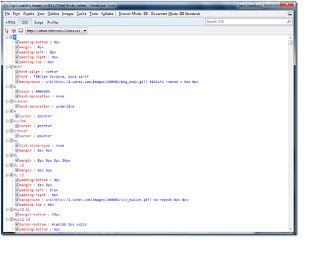
Also, since we are on the topic of developers, IE8 also has a great new feature for you. Simply pushing F12 will bring up the developer tools menu, which instantly displays a huge amount of information about the current rendered page. There is no need to open a separate window anymore.

Pretty spiffy, I would say.

Also, for those of you who are deploying IE8 in a larger setting, or for those that just want to play, the IE8 team has also provided an administration pack that allows you to easily tweak and customize the browser for deployment. This toolkit is available here: http://technet.microsoft.com/de-de/ie/cc889349(en-us).aspx

Anyway, this post is by no means exhaustive on any aspect of the browser, but I hope I have piqued your curiosity enough to dive into the menus and see what new features lie within. Overall, Microsoft finally appears to be on the right track with the browser – at least in terms of usability.

“The command is not available”

So, first of all, I want to say sorry for the slow release of this latest update.  It is really tough to get one out, when you are on a beach in Eastern Thailand soaking up sun and watching a group of “red shirted thugs” get their asses kicked off the streets. Needless to say, the trip has been great – and I love the excitement!

Now, let’s say that you are on vacation as I am, and you decide to put on your out of office assistant. You’d think that the damn thing should just work, right? Well, you’d be wrong. I don’t know why this little extension in Micrososft Office Outlook, can be such a truly royal pain in the buttocks, but without fail, I find myself constantly diagnosing issues with it and having to everything from registry edits to outright reinstalling it to get it working.  It really shouldn’t be this much of a pain.

Anyway, one error that I have come across numerous times is the

"The command is not available. See the program documentation about how to use this extension."”  error.  This little guy is just bizarre. For whatever, reason, Outlook just decides that this chunk of code is unsafe and disables it.


Ok, fair enough. Just go into the tools menu and fix …umm, wait…, I can’t find anything about disabled add-ins in the tools menu….maybe its under options…umm…nope…well, hmm…let’s keep going…geez, it can’t possibly be that hard to find this setting…and ..hmm…with only 2,999 more menu items to go through…….JESUS CHRIST, where in the hell is it? F$%K!

Well, I won’t hold you in suspense any longer…this menu entry is right where you would expect important settings like this to be located…right in the most logical of spots…simply browse to the “HELP” menu, then “ABOUT MICROSOFT OFFICE OUTLOOK”  and then click on the “DISABLED ITEMS”

There is a good chance that thee is only one item that is in the list and re-enabling that will fix your “Out of Office Assistant” . Now, all I want to know is why in God’s damnation would Microsoft put that bloody setting under the HELP and ABOUT menu…WHY????????????? PLEEEEEEASE SOMEBODY TELL ME WHY>>>>> AHHHHHHGH!

Anyway, that’s my rant for today, and I hope that you can get your "Out of Office” message on for your own vacation after reading this.  I am heading back to the beach!


Matt

WCF: Using WCF With .NET 2.0

Well, I’m in beautiful sunny downtown Rayong, Thailand, and WCF is not high on my agenda right now, so this update is going to be a quick and simple, right-down-to-business tutorial on something a lot of you have been asking for: combining WCF and .NET 2.0.

WCF really is nice to use.  The problem, however, is that .NET 3.5 is truly a beast to deploy.  In many cases, requiring .NET 3.5 on a client’s machine is simply not on.  Luckily, WCF is a server technology, and you don’t actually need .NET 3.5 on the client machine to access it.  I’m going to show you how.

Let’s start with the WCF client.  Create a new WCF Service Application (found under the Web category), targeting .NET 3.5.  I’ll call mine WCFService.

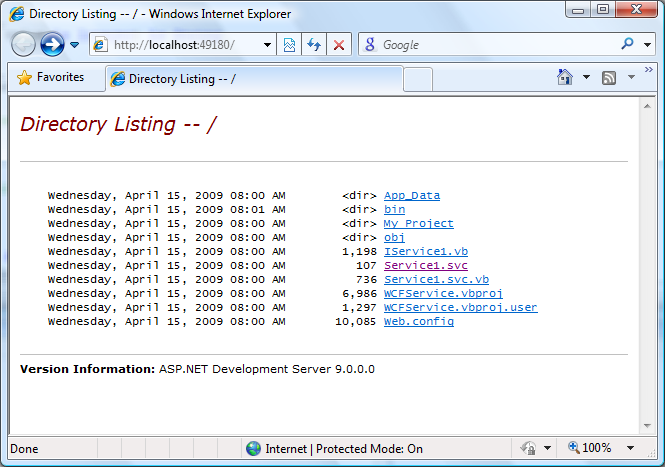
In previous articles, I’ve written about a lot of the work involved with getting a WCF service built and running under IIS.  The nice thing about this VS template is that most of that is already done for you.  As soon as the project is created, run it.  Here’s what you’ll get:

image

As you can see, you’re browsing the service application you wrote.  This isn’t actually IIS, it’s a stripped down web server that ships with VS2008 called ASP.NET Development Server.  Don’t worry, though: it’s almost entirely compatible with the real IIS.  Except for a couple issues I’ve discussed previously regarding security and configuration settings, you won’t have any trouble making the transition.

So, our web service is running at http://localhost:49180.  You’ll see a file in the listing you get called Service1.svc.  This is the default WCF service VS added to your new project.  Click it, and you’ll browse to http://localhost:49180/Service1.svc, which will give you a page telling you that you’ve found a WCF service.  It also includes a link the the WSDL, which is what’s needed to consume this WCF service from non-WCF platforms, such as .NET 2.0.  Note that the port number may be different on your machine; be sure to use the address Visual Studio provides, not the example address I’m using through this tutorial.

There is just one more change you must make to your WCF Service to allow older clients to use it: you must use the basicHttpBinding rather than the default wsHttpBinding.  Open web.config and find the following line (likely line 154 or so):

<endpoint address="" binding="wsHttpBinding" contract="WCFService.IService1">

Change it to:

<endpoint address="" binding="basicHttpBinding" contract="WCFService.IService1">

Your service is now finished.

Now, on to the client.  I’ll use Visual Studio 2005 for this, even though you could just as easily use VS2008 and target .NET 2.0.  Create a new Windows Forms Application.  I’ll call mine WinFormsClient:

Once your project is created, you’ll need to add a reference to the WCF service you just built.  Click the Project menu and select Add Web Reference.  You’ll get a window asking you for an address.  Type the URL to your WCF Service (for now, it should be http://localhost:49180/Service1.svc, although the port number may be different) and click Go.  Visual Studio will find your WCF Service, although it will refer to it as a Web Reference:

image

I would suggest giving your reference a more meaningful name, such as WCFService.  Once you click Add Reference, VS will automatically set up everything needed to call the WCF Service.  Now, let’s write some code.  Double-click your new empty Form1, and VS will open up the Form Load method.  Type this:

Dim wcfService As New WCFService.Service1()
Me.Text = wcfService.GetData(Now.Second, True)

Your WCF Service should still be running, so now you just need to run your client.  When you do, the title bar should display the text returned by the call to your WCF Service:

image

Just like that, you’ve consumed a WCF service from .NET 2.0!  Obviously, there are a lot of places to go from here.  Debugging code is very nice; you’ll be able to jump from breakpoint to breakpoint right across the WCF boundary.  In real life, you’d want to adjust the URL used to access your web service.  But to just get up and running, that’s about it!

Hope this helps.  Time for me to head back to the beach.  Good luck!


Copyright © 2010 Paul Guenette and Matthew Sleno.