“The command is not available”

So, first of all, I want to say sorry for the slow release of this latest update.  It is really tough to get one out, when you are on a beach in Eastern Thailand soaking up sun and watching a group of “red shirted thugs” get their asses kicked off the streets. Needless to say, the trip has been great – and I love the excitement!

Now, let’s say that you are on vacation as I am, and you decide to put on your out of office assistant. You’d think that the damn thing should just work, right? Well, you’d be wrong. I don’t know why this little extension in Micrososft Office Outlook, can be such a truly royal pain in the buttocks, but without fail, I find myself constantly diagnosing issues with it and having to everything from registry edits to outright reinstalling it to get it working.  It really shouldn’t be this much of a pain.

Anyway, one error that I have come across numerous times is the

"The command is not available. See the program documentation about how to use this extension."”  error.  This little guy is just bizarre. For whatever, reason, Outlook just decides that this chunk of code is unsafe and disables it.


Ok, fair enough. Just go into the tools menu and fix …umm, wait…, I can’t find anything about disabled add-ins in the tools menu….maybe its under options…umm…nope…well, hmm…let’s keep going…geez, it can’t possibly be that hard to find this setting…and ..hmm…with only 2,999 more menu items to go through…….JESUS CHRIST, where in the hell is it? F$%K!

Well, I won’t hold you in suspense any longer…this menu entry is right where you would expect important settings like this to be located…right in the most logical of spots…simply browse to the “HELP” menu, then “ABOUT MICROSOFT OFFICE OUTLOOK”  and then click on the “DISABLED ITEMS”

There is a good chance that thee is only one item that is in the list and re-enabling that will fix your “Out of Office Assistant” . Now, all I want to know is why in God’s damnation would Microsoft put that bloody setting under the HELP and ABOUT menu…WHY????????????? PLEEEEEEASE SOMEBODY TELL ME WHY>>>>> AHHHHHHGH!

Anyway, that’s my rant for today, and I hope that you can get your "Out of Office” message on for your own vacation after reading this.  I am heading back to the beach!


Matt
WCF: Using WCF With .NET 2.0

Well, I’m in beautiful sunny downtown Rayong, Thailand, and WCF is not high on my agenda right now, so this update is going to be a quick and simple, right-down-to-business tutorial on something a lot of you have been asking for: combining WCF and .NET 2.0.

WCF really is nice to use.  The problem, however, is that .NET 3.5 is truly a beast to deploy.  In many cases, requiring .NET 3.5 on a client’s machine is simply not on.  Luckily, WCF is a server technology, and you don’t actually need .NET 3.5 on the client machine to access it.  I’m going to show you how.

Let’s start with the WCF client.  Create a new WCF Service Application (found under the Web category), targeting .NET 3.5.  I’ll call mine WCFService.

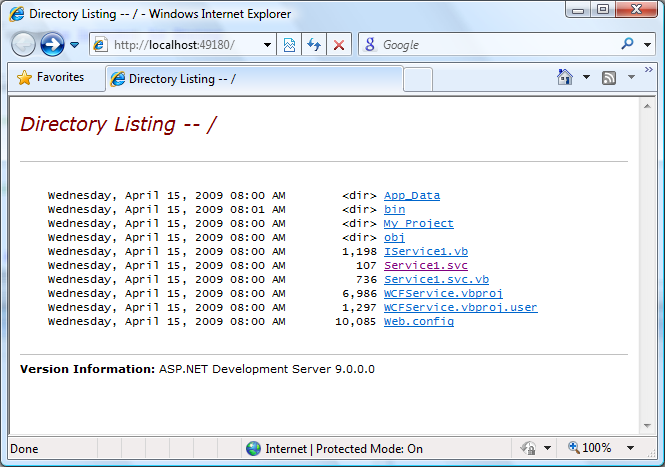
In previous articles, I’ve written about a lot of the work involved with getting a WCF service built and running under IIS.  The nice thing about this VS template is that most of that is already done for you.  As soon as the project is created, run it.  Here’s what you’ll get:

image

As you can see, you’re browsing the service application you wrote.  This isn’t actually IIS, it’s a stripped down web server that ships with VS2008 called ASP.NET Development Server.  Don’t worry, though: it’s almost entirely compatible with the real IIS.  Except for a couple issues I’ve discussed previously regarding security and configuration settings, you won’t have any trouble making the transition.

So, our web service is running at http://localhost:49180.  You’ll see a file in the listing you get called Service1.svc.  This is the default WCF service VS added to your new project.  Click it, and you’ll browse to http://localhost:49180/Service1.svc, which will give you a page telling you that you’ve found a WCF service.  It also includes a link the the WSDL, which is what’s needed to consume this WCF service from non-WCF platforms, such as .NET 2.0.  Note that the port number may be different on your machine; be sure to use the address Visual Studio provides, not the example address I’m using through this tutorial.

There is just one more change you must make to your WCF Service to allow older clients to use it: you must use the basicHttpBinding rather than the default wsHttpBinding.  Open web.config and find the following line (likely line 154 or so):

<endpoint address="" binding="wsHttpBinding" contract="WCFService.IService1">

Change it to:

<endpoint address="" binding="basicHttpBinding" contract="WCFService.IService1">

Your service is now finished.

Now, on to the client.  I’ll use Visual Studio 2005 for this, even though you could just as easily use VS2008 and target .NET 2.0.  Create a new Windows Forms Application.  I’ll call mine WinFormsClient:

Once your project is created, you’ll need to add a reference to the WCF service you just built.  Click the Project menu and select Add Web Reference.  You’ll get a window asking you for an address.  Type the URL to your WCF Service (for now, it should be http://localhost:49180/Service1.svc, although the port number may be different) and click Go.  Visual Studio will find your WCF Service, although it will refer to it as a Web Reference:

image

I would suggest giving your reference a more meaningful name, such as WCFService.  Once you click Add Reference, VS will automatically set up everything needed to call the WCF Service.  Now, let’s write some code.  Double-click your new empty Form1, and VS will open up the Form Load method.  Type this:

Dim wcfService As New WCFService.Service1()
Me.Text = wcfService.GetData(Now.Second, True)

Your WCF Service should still be running, so now you just need to run your client.  When you do, the title bar should display the text returned by the call to your WCF Service:

image

Just like that, you’ve consumed a WCF service from .NET 2.0!  Obviously, there are a lot of places to go from here.  Debugging code is very nice; you’ll be able to jump from breakpoint to breakpoint right across the WCF boundary.  In real life, you’d want to adjust the URL used to access your web service.  But to just get up and running, that’s about it!

Hope this helps.  Time for me to head back to the beach.  Good luck!

Special Thanks

I would just like to give all of our readers out there a Special Thanks for helping us make this blog so enormously successful.

We have only been around for a few months, but have seen our popularity balloon and have really enjoyed the feedback. Paul and I really enjoy writing this blog and we sincerely hope that it is enjoyable and helpful to our readership.

I would also like to thank Kurt Shintaku, who posted a link and mentioned Paul’s article on Why IE crashes. Thanks Kurt. I will also say that after taking a look at Kurt’s blog I am equally impressed.  The blog can be found here. Enjoy…… http://kurtsh.spaces.live.com/

Google Chrome: There And Back Again

Okay, so I’ll admit it: I like Google Chrome.  Lots.

It’s fast, it’s clean, and it’s a pleasure to use.  The combined address and search bar (why don’t all browsers do this?) is nice and prominent, the other required UI widgets are easy to click, and the software generally gets out of your way and lets you do your job.  Exactly what I like in a browser, and such a change from IE’s constant nagging and messy UI.  And perhaps most importantly, for me at least, it’s secure: sandboxed, proven rendering engine, and rarely-targeted due to it’s obscurity.  In fact, it was the only browser to (mostly) survive CanSecWest’s pwn2own security contest – although Opera wasn’t included (but they’re used to that).

It might not be perfect: bookmark support is rudimentary at best, there is no support whatsoever for feeds, and certain areas are a bit unpolished, like the awkward brilliance of its file downloading UI.  But I don’t really mind: I don’t use these features anyway.  I just want the browser.

So, I jumped ship.  I boldly clicked on the ‘Make Google Chrome my default browser’.  I even unpinned IE from my taskbar.

At first, it was a beautiful thing.  Fast, clean browsing!  And I was supporting a different evil empire!

But things soured quickly.  Supposedly, Chrome isolates each tab in a separate sandbox, so if one dies, the browser lives on.  I’ve seen this in action, and it does work.  Sometimes.  But apparently not always, because browsing Google Analytics always triggers a crash by the time I’m three or four pages in.  Oh, sure, it’s (as always) Adobe Flash that’s actually crashing, but it’s bringing Google Chrome down with it.  And not just the tab: the whole browser stops responding, and I have to kill it with Task Manager.

And then, I did another crazy thing: I clicked a link in Outlook.  Well, Google Chrome fired up just fine… and then did nothing.  No page.  Nothing.  Just an ocean of white.  For some reason, it won’t actually load the links the shell passes to it.

Now, I’m sure there’s a solution here.  It’s probably quick and easy – if you know it, leave a comment – but you know what?  I don’t care.  I should not have to troubleshoot such a basic feature: that’s Google’s job, and they failed.  And yes, technically, Google Analytics crashing is Adobe’s fault, but if I can’t even use Google Chrome to browse Google Analytics without it dying on me, then fuck that.

So once again, I’m back to IE.  Not because I like it.  Not because I’m too lazy or complacent to try alternatives.  Because the damn thing actually works.  Google: please fix your shit.  I like it.  I want to use it.  I want to ditch IE.  But I need a browser that actually WORKS.  And while you’re at it, quit using Flash all over the place.

Next Generation TCP/IP Stack

Undoubtedly, one of the biggest sources of complaints from adopters of Vista and Server 2008 has been the new Networking UI and some of the shit that goes along with it. Yes, even I, have sat staring dumbfounded drooling incessantly as  Vista seemingly takes over and “Network Awareness” tells you that your perfectly configured router is incapable of accessing the internet or you are totally unable to even browse network shares on computers around you. WHY>>>AAARGH!!!!

The frustration, the agony, and the eventual exorcism and sacrifice of the Vista Demon that has brought unspeakable amounts of suffering to you and the pane-glass living room sporting a perfect IBM-sized hole are immeasurable. But wait, why would Microsoft do this, surely there is some reason, right?

Unfortunately, for many of us, that answer for the time being may be “No.” There isn’t a lot of apparent usefulness. But, that doesn’t mean that there aren’t any improvements at a lower level actually making the OS work better…in fact there really are (really, I’m not bullshittin ya!). Microsoft, as usual, has done a really terrible job in showing the average user why they should care about any of these configuration options – but for the IT professional- some of these changes DEFINITELY bring increased reliability and lower TCO (Total Cost of Ownership). 

Vista and Server 2008 have a completely re-written TCP/IP stack that is now referred to as the Next Generation TCP/IP stack. It replaces the venerable, well-known, but buggy standard Windows TCP/IP stack that was basically unchanged since the Windows 95 days. Let’s face it, with the role that TCP/IP has assumed in modern computing, and the demands that have been placed on this protocol suite, it is no wonder that the Microsoft Engineers wanted to tackle this one. Undeniably, nobody imagined that this 70s era protocol would be robust enough and able to keep up with streaming media, VOIP, and the massive routing that packets are forced to go through nowadays. It is the next generation TCP/IP stack that makes it all work just a little better.

One thing I want to say now. DO NOT DISABLE IPV6 IN ANY PRODUCTION SERVER. THE RESULTS CAN BE CATASTROPHIC! (This one is for you Devon) I don’t say this out of personal experience, but my fellow colleague can vouch for it!  With that little not-so-casual warning out of the way…Let’s jump into this.

The changes in the TCP/IP stack not only apply to IPV6, but also apply to our trusted friend IPv4.

Here are some of the changes:

Modified Fast Recovery Algorithm

This feature provides the ability for windows to alter the way in which a sender can increase the sending rate if multiple segments in a data window are lost and the receiver has acknowledged the partial data receipt.  The end result here is greater reliability and speed.

Network Diagnostics Framework

Provides a framework within the stack that can help users recover from networking errors and troubleshoot networking issues. Often, to understand the information this framework present still requires a thorough understanding of networking in general.

Compound TCP 

This is an optimization that is able to increase the amount of data sent in a connection without adversely affecting other TCP/IP sessions.  This often does produce a noticeable speed increase.

Automatic Black Hole Router Detection

This particular enhancement is hugely useful in network segments that have lossy routers and general patchiness. This actually forces TCP connections to not terminate when an intermediate router is silently discarding large TCP segments and will force the connection to stay alive even when error messages and retransmissions occur. The end result here is reliability.

Automatic Dead Gateway Retry 

Similar to above, except that it will actually periodically try to contact and unreachable gateway and will start utilizing it once it is alive. This, too, adds to the overall reliability of a TCP network.

Spurious Retransmission Timeout Detection

Offers correction for sudden increases in retransmission timeouts and prevents unnecessary retransmission of segments. This can have a huge impact on speed in an environment with some unstable routing equipment.

The following apply to IPv6 only.


Link-Local Multicast Name Resoulution

At some point in time, this little feature is going to become hugely useful –especially for the technically challenged setting up a Vista or Server 2008 home network.  This little feature will actually allow IPv6 clients to be able to resolve host names without a DNS server provided that the hosts are all on one single subnet.  This will greatly increase reliability, especially in small business environments.


Random Interface IDs

This feature helps thwart scanning attacks based on Networking equipment manufacturers company IDs Basically, it generates random interface IDs for auto-configured connections including public and link-local addresses.


This list is by no means an exhaustive one, but I hope that it helps highlight some of the strides forward that Microsoft has taken in developing this stack.  While we all hate change, at some point in time we WILL all be using IPv6, so why not get ahead of the curve now and learn how to leverage this technology into grater performance for your IT environment. Change is inevitable, it brings some pain, but 5 years from now we will all be reaping the benefits of our highly robust computing platforms.

Server2008 networking is a giant leap forward, so get your game shoes on and save yourself the cost of a new window!


Copyright © 2010 Paul Guenette and Matthew Sleno.